Reports
Project: shop siyadatech.studio
Description
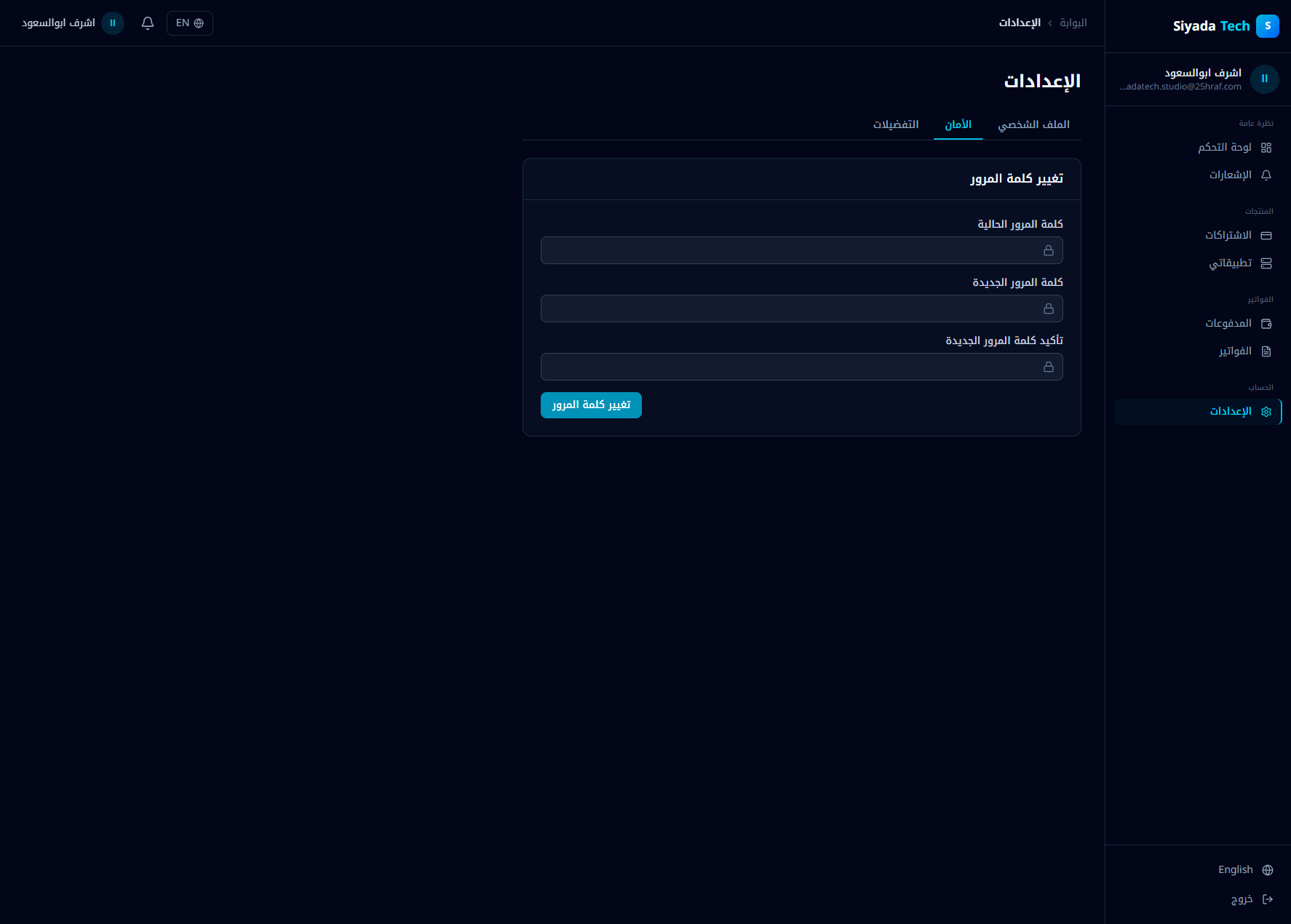
Issue description After successfully changing the account password from Settings → Security, no email notification is sent to the user confirming that the password was changed. Additionally, there is no “If this wasn’t you” rollback/recovery email. This creates a security gap: Users are not informed of critical account changes. There is no immediate recovery path if the password was changed by an unauthorized actor. The system does not provide audit visibility for high-risk actions. Expected behavior When a password is changed successfully: The user should immediately receive a security notification email. The email should include: Confirmation that the password was changed. Timestamp of the change. Device/IP metadata (if available). A secure link to report unauthorized change (“If this wasn’t you”). If the password change was unauthorized, the user should be able to: Trigger forced logout of all sessions. Reset the password again securely. Acceptance criteria After password change: A confirmation email is sent within a few seconds. The email includes: Clear subject (e.g., “Your password was changed”). Change timestamp. Security advisory. Secure recovery/reset link. If the password change was not initiated by the user: Clicking the recovery link: Invalidates all sessions. Prompts secure password reset. Email is localized (Arabic/English based on user preference). No password change completes silently without triggering a security notification.
Screenshots & Video
Description
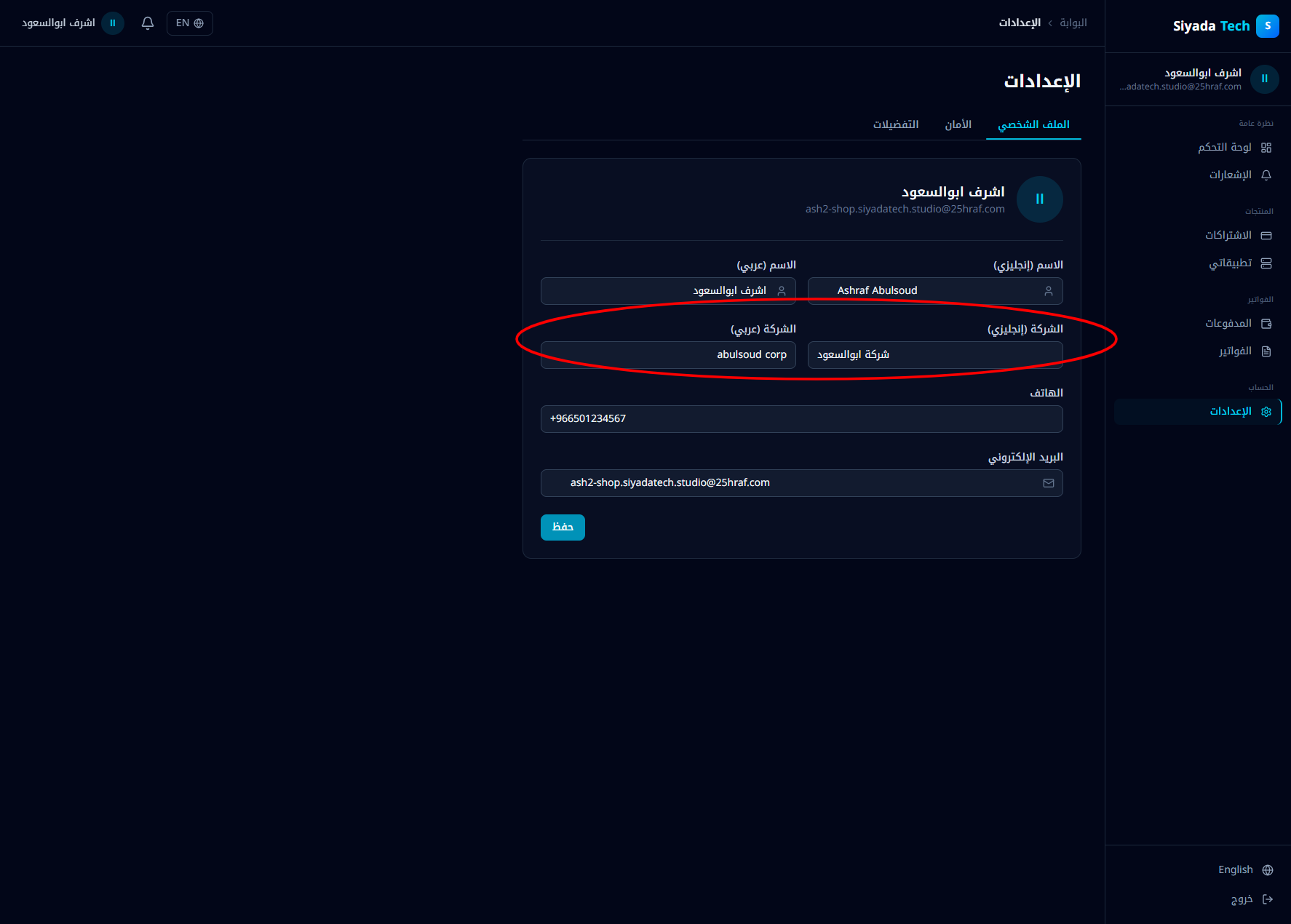
Issue description In Profile Settings → Company Name fields, the system allows: Entering English text in the Arabic company name field. Entering Arabic text in the English company name field. There is no validation enforcing language consistency between the field label and the actual input content. This creates data inconsistency and undermines the purpose of having separate localized company name fields. Expected behavior The Arabic company name field should only accept Arabic characters (and optionally numbers and approved symbols). The English company name field should only accept Latin characters (and optionally numbers and approved symbols). If the input language does not match the expected script, the system should show a clear validation message and prevent saving. Acceptance criteria When entering Latin characters in the Arabic company name field: The system shows a validation error (e.g., “يرجى إدخال اسم الشركة بالعربية فقط”). The form cannot be saved until corrected. When entering Arabic characters in the English company name field: The system shows a validation error (e.g., “Please enter the company name in English only”). The form cannot be saved until corrected. Numbers and common business symbols (e.g., &, -, ., LLC) are handled according to defined validation rules. The validation works consistently in both Arabic (RTL) and English (LTR) modes. Saving the profile is blocked if either field contains invalid script content.
Screenshots & Video
Description
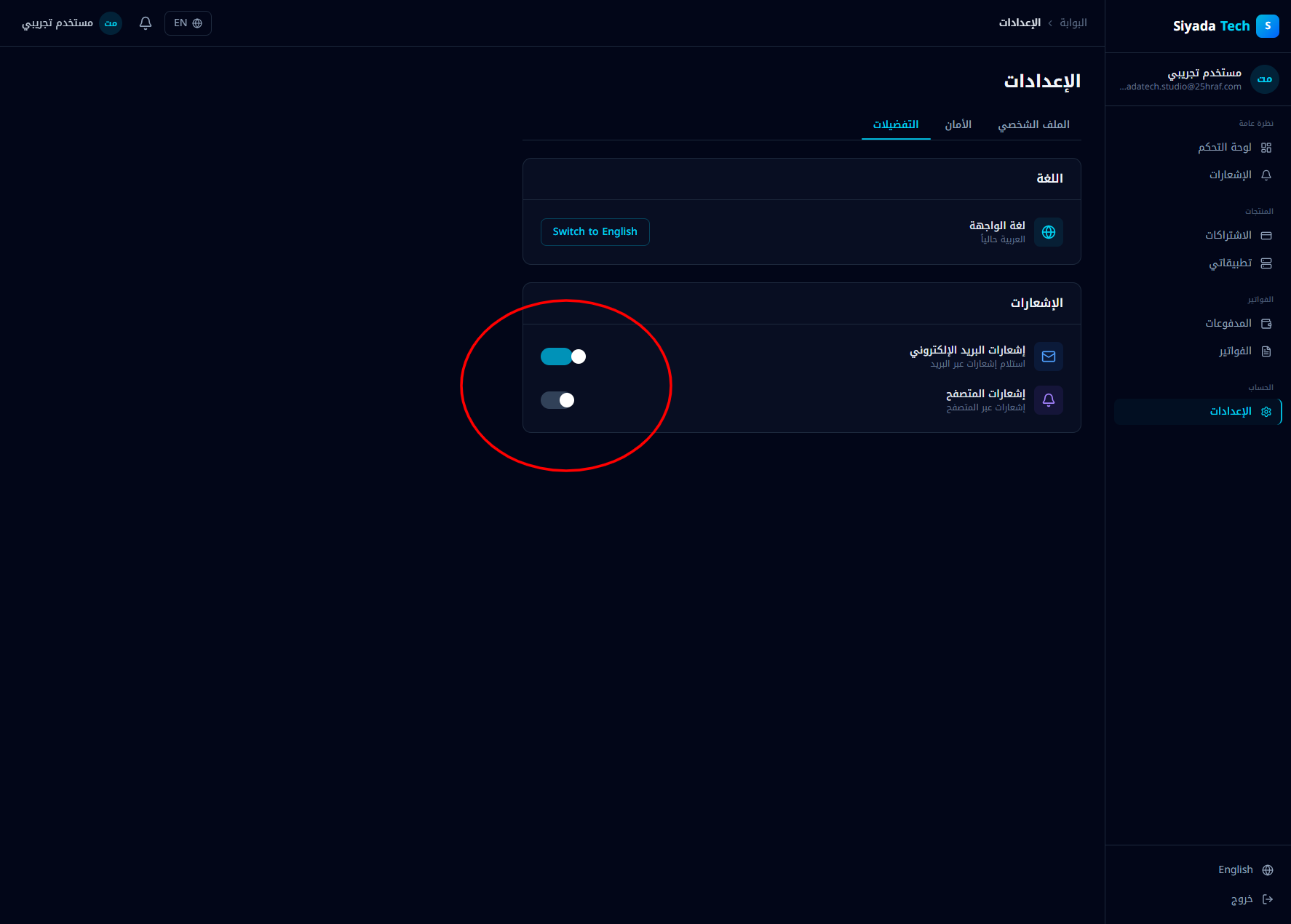
Issue description In the Settings → Notifications section, the toggle controls (visually styled like switches/radio buttons) are misaligned and visually inconsistent. The switch elements appear detached from their labels, improperly spaced, and not clearly associated with their respective notification options (Email notifications / In-app notifications). This results in: Poor visual hierarchy. Ambiguity about which switch controls which setting. UI inconsistency compared to the rest of the design system. Expected behavior Each notification option should have a clearly aligned label and its corresponding toggle control within the same row. The toggle should be visually anchored to its setting (consistent spacing, alignment, and grouping). The switch style should follow the design system standards (size, color states, RTL alignment). In Arabic (RTL), layout direction should correctly mirror alignment and spacing. Acceptance criteria Each notification setting is displayed in a single horizontal row containing: Icon Title Description Toggle switch aligned consistently (RTL-aware). Toggle switches are vertically centered relative to their labels. Spacing between elements is consistent with the app’s spacing system. No floating or misaligned controls appear detached from their labels. Switch state (on/off) is clearly distinguishable via color and position. Layout renders correctly in both Arabic (RTL) and English (LTR).
Screenshots & Video
Issue URL
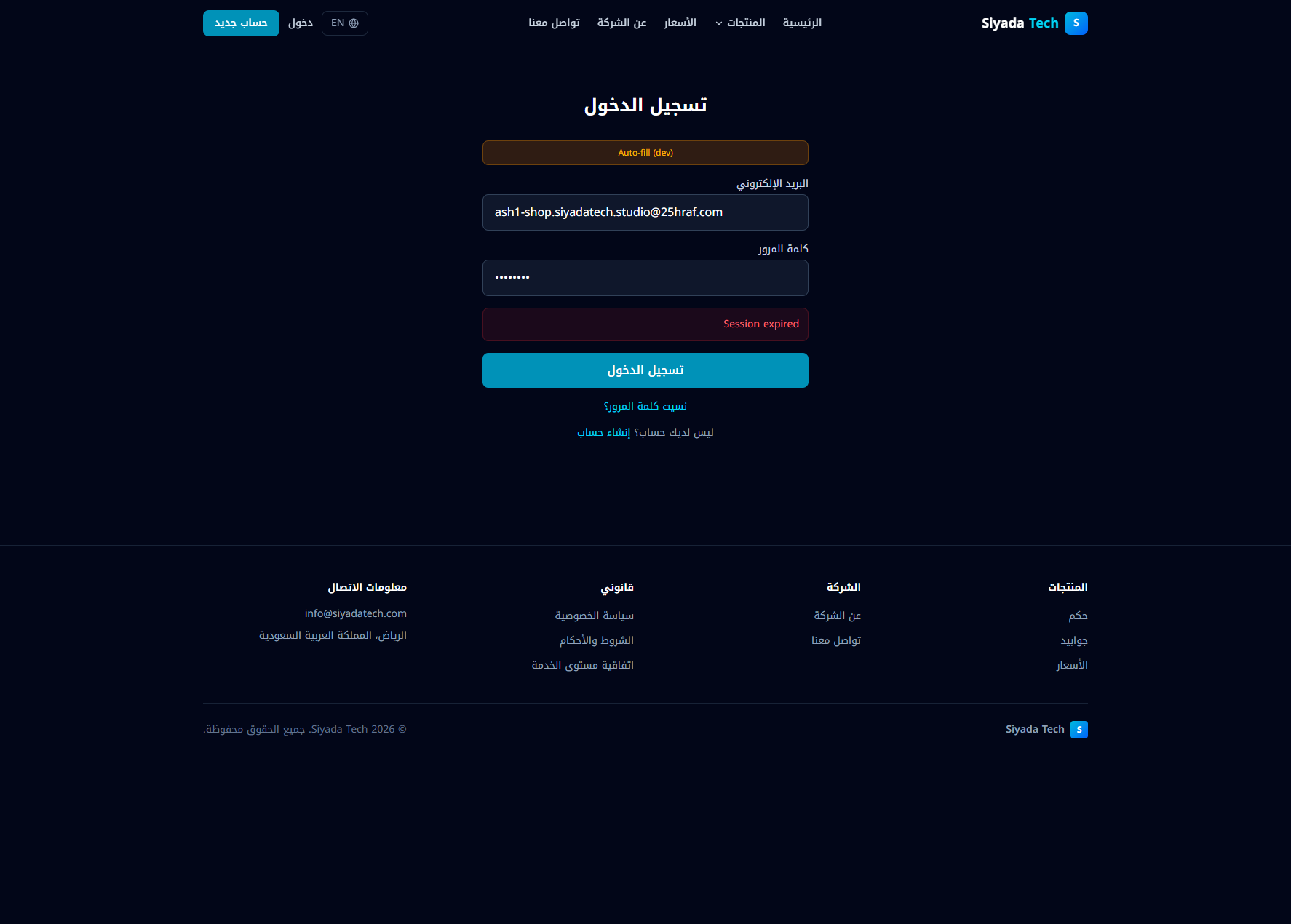
https://shop.siyadatech.studio/loginDescription
Issue description When attempting to log in, the login form displays an error message “Session expired” immediately (or after submitting credentials), and the user cannot complete authentication. The form remains on the login page with the error shown under the password field, indicating the login flow is incorrectly treating the attempt as an expired/invalid session instead of performing a normal sign-in. Expected behavior If the user is not logged in, submitting valid email + password should create a new authenticated session and redirect the user to their account/dashboard. “Session expired” should only appear when a previously valid session/token is no longer valid and the system requires re-authentication (e.g., when accessing a protected page), not as a generic login failure message. Invalid credentials should show a clear “invalid email/password” type message (not “session expired”). Acceptance criteria Logging in with valid credentials succeeds and redirects to the expected authenticated destination. Logging in with invalid credentials shows an “invalid credentials” message (or equivalent), not “Session expired.” If an existing session is expired, the app: clears the expired session state, and allows the user to log in successfully on the next submit. The “Session expired” message only appears when: a protected resource is accessed with an expired token/session, or a refresh-token/session-renewal attempt fails due to expiration. Refreshing the login page does not preserve/rehydrate a stale “expired session” state that blocks login.
Console Output
index-CSP9K0az.js:12  POST https://shop.siyadatech.studio/api/v1/auth/login 401 (Unauthorized)
we @ index-CSP9K0az.js:12
login @ index-CSP9K0az.js:12
g @ index-CSP9K0az.js:12
j @ index-CSP9K0az.js:12
Wd @ index-CSP9K0az.js:9
(anonymous) @ index-CSP9K0az.js:9
to @ index-CSP9K0az.js:9
Dr @ index-CSP9K0az.js:9
Jr @ index-CSP9K0az.js:10
Tg @ index-CSP9K0az.js:10
login:1 Uncaught (in promise) Error: Could not establish connection. Receiving end does not exist.
Screenshots & Video
Issue URL
https://shop.siyadatech.studio/Description
Issue description When the user manually switches the website language to English, the interface temporarily updates correctly. However, after refreshing the page or navigating to another route (e.g., going to “My Account” and returning to the public site), the language automatically switches back to Arabic. This indicates that the selected language preference is not being persistently stored or correctly restored during navigation and page reloads. Expected behavior When a user selects English, that choice should persist: After page refresh. After navigating between public pages. After navigating to authenticated pages (e.g., account dashboard) and returning. The language preference should remain consistent across the entire session and between sessions (unless the user changes it again). Acceptance criteria After selecting English, refreshing the page keeps the UI in English. Navigating to “My Account” and returning to the public site does not revert to Arabic. The selected language persists across route changes in SPA navigation. If a storage mechanism is used (e.g., localStorage, cookie, or user profile preference), the language is correctly read and applied on initial app load before UI rendering. No flicker occurs where Arabic loads briefly before switching to English.
Console Output
index-CSP9K0az.js:12 🌐 i18next is maintained with support from Locize — consider powering your project with managed localization (AI, CDN, integrations): https://locize.com 💙
Screenshots & Video
Issue URL
https://shop.siyadatech.studio/Description
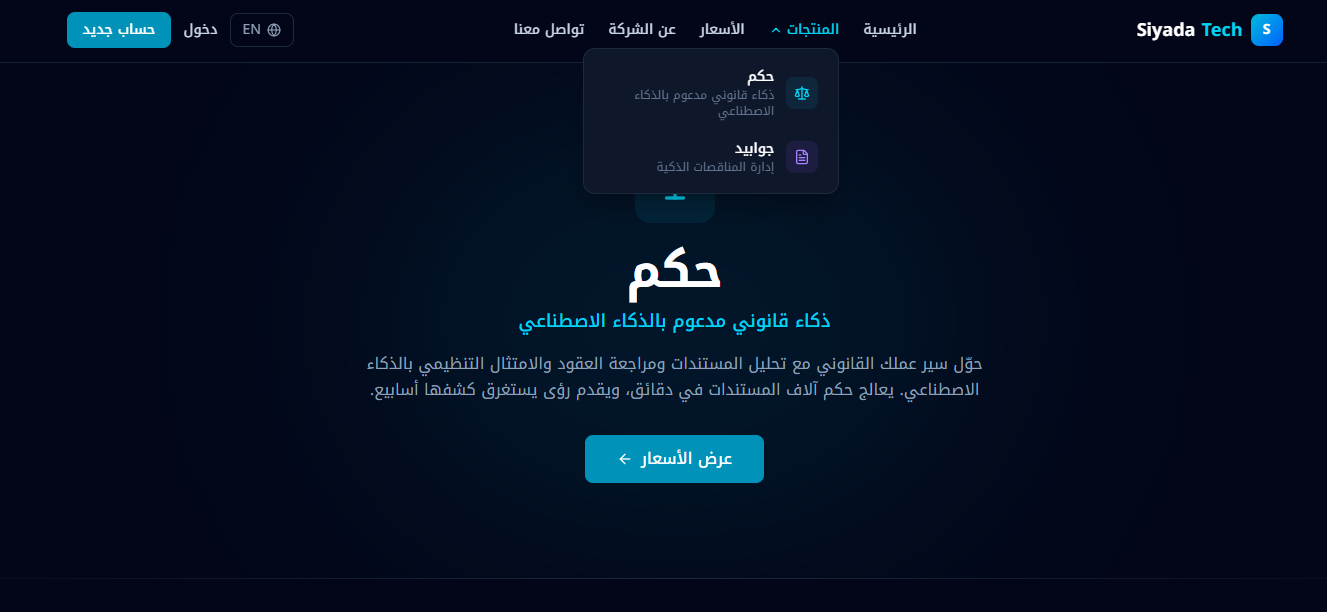
Issue description On the top navigation, hovering المنتجات opens the dropdown submenu. However, when moving the mouse from the parent menu item into the submenu panel to click an item (e.g., حكم or جوابيد), the submenu closes immediately. This makes the submenu effectively unclickable and forces repeated hover attempts. Expected behavior The submenu should remain open while: The cursor is over the parent menu item or The cursor is within the submenu dropdown area. The submenu should only close when the cursor leaves both the parent trigger area and the submenu panel (optionally with a small delay). Acceptance criteria From a closed state, hovering المنتجات opens the submenu and keeps it visible. Moving the cursor from المنتجات into the submenu does not close it. Users can successfully click any submenu item (e.g., حكم, جوابيد) on the first attempt. The submenu closes only after the cursor leaves both the parent trigger and the submenu area (no premature close during normal cursor movement). Works consistently across common desktop browsers (Chrome, Edge, Safari, Firefox) and typical pointer speeds.
Console Output
index-CSP9K0az.js:12 🌐 i18next is maintained with support from Locize — consider powering your project with managed localization (AI, CDN, integrations): https://locize.com 💙