Reports
Project: RFP 3/5/2026
Description
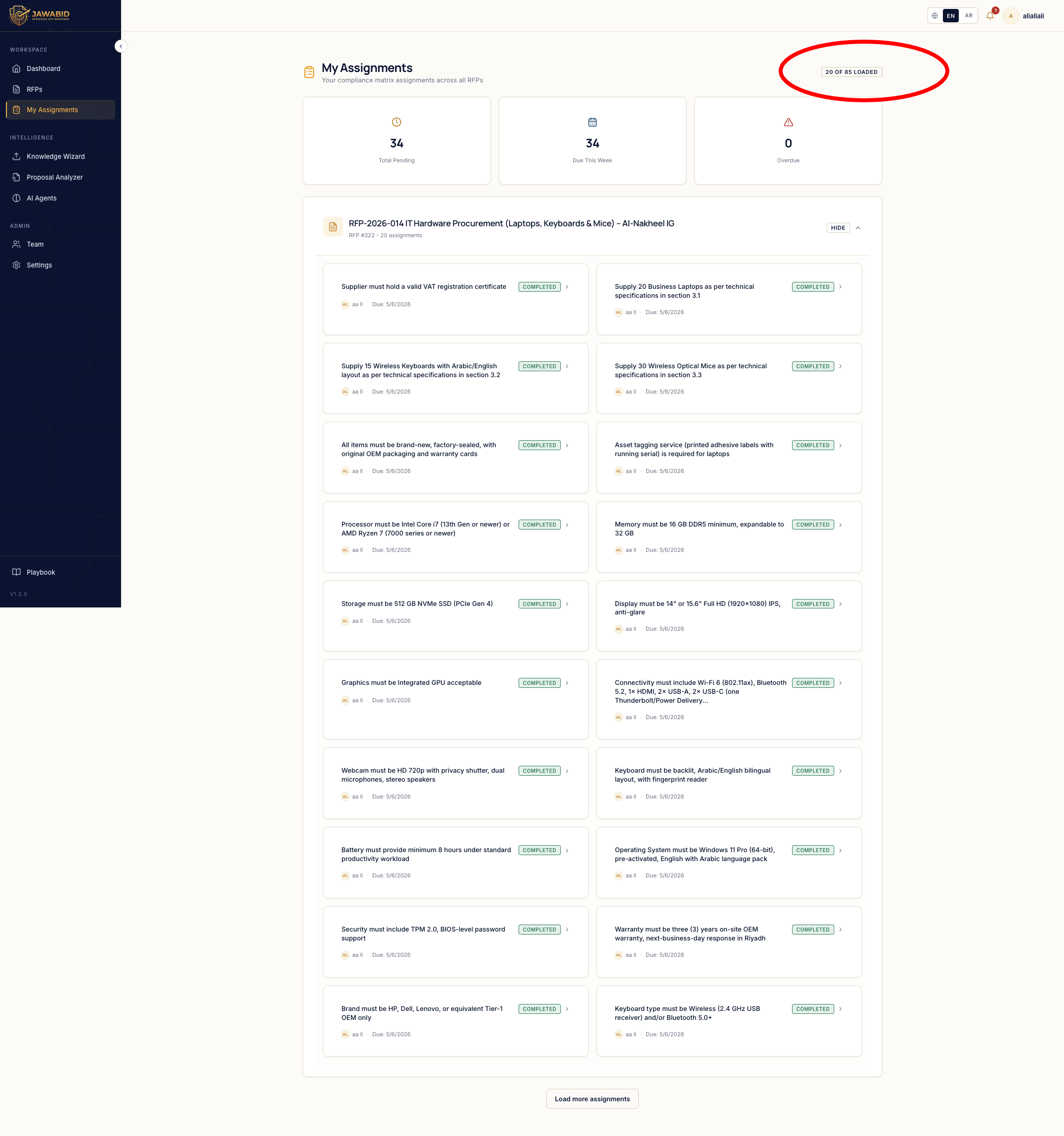
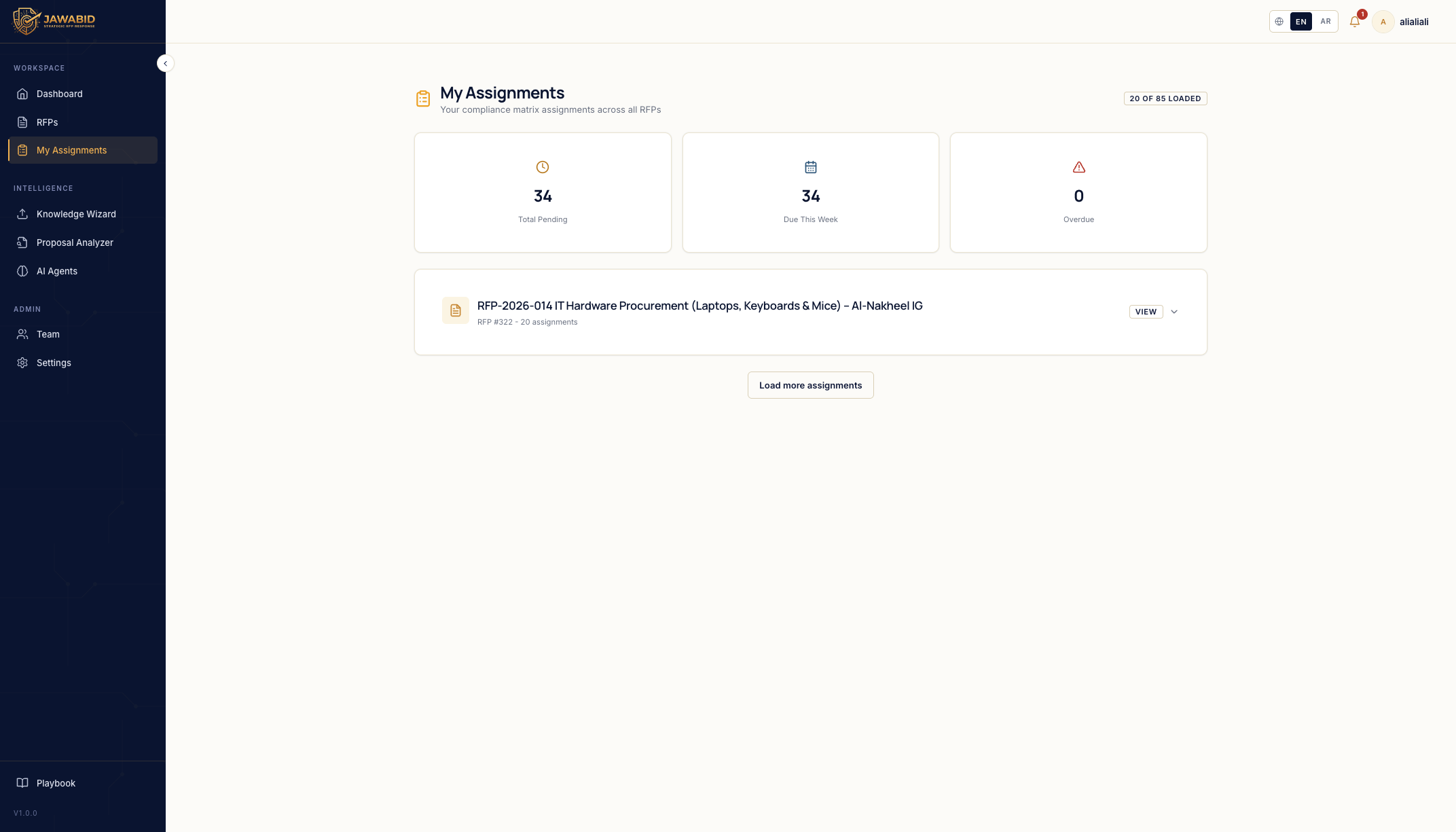
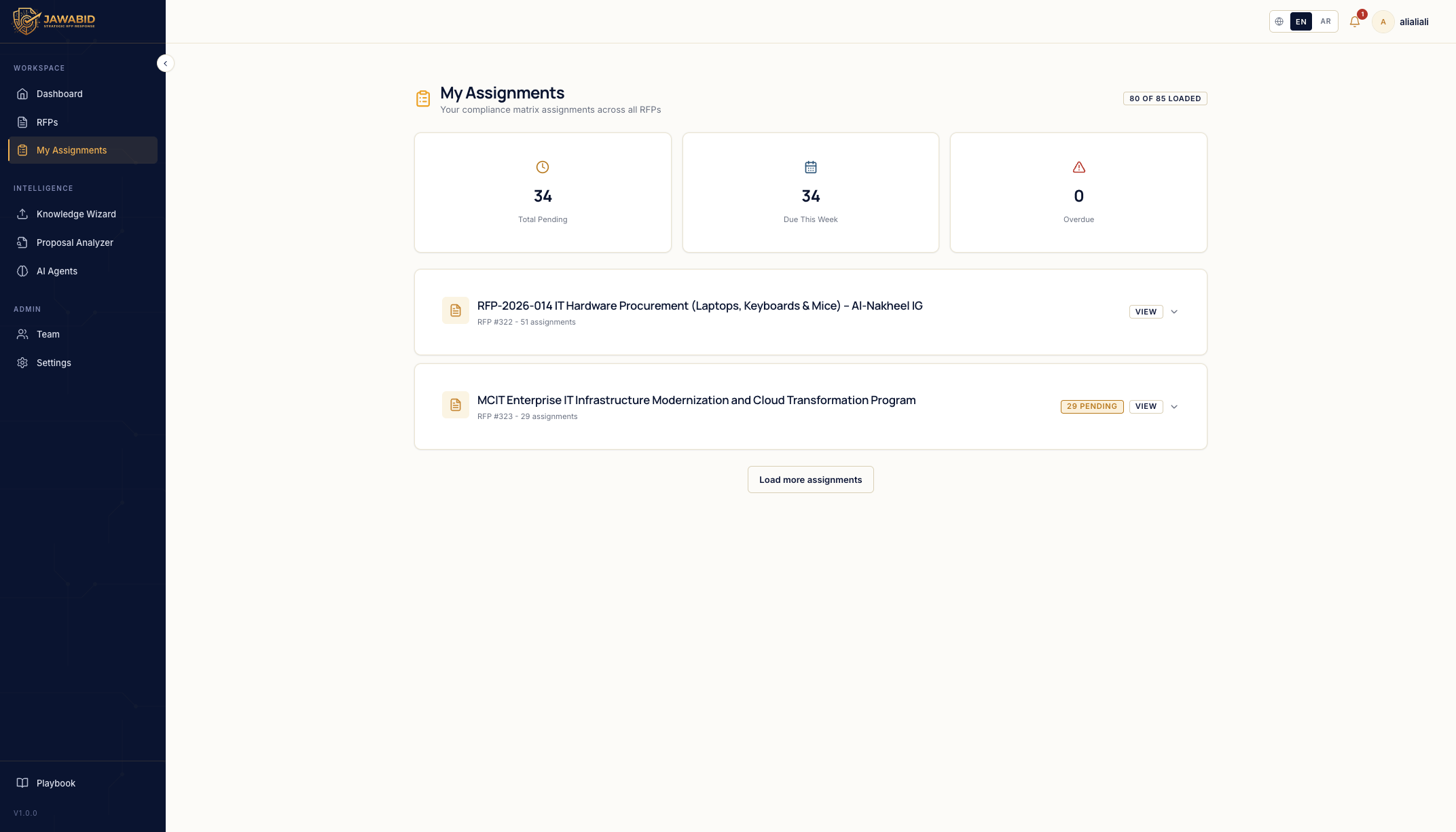
Issue: Assignment pagination counter is global and hides other RFPs Description On the My Assignments page, the loading counter appears to count assignments globally across the whole system instead of grouping/loading them by RFP. Because of this, when there are assignments from multiple RFPs, the user has to keep clicking Load more assignments and load all assignments from the first RFP before the second RFP becomes visible. Page/Screen My Assignments Actual Result The page shows a global counter such as: 20 of 85 loaded The first RFP dominates the loaded results. The second RFP does not appear until enough assignments from the first RFP are loaded. Expected Result The page should load and display RFP groups first, then allow assignments to be expanded or loaded inside each RFP separately. Suggested Behavior * Show all RFP groups available to the user from the beginning. * Each RFP card should show its own assignment count, for example: * 20 assignments * 51 assignments * 29 assignments * Pagination/loading should happen inside each RFP group, not globally across all assignments. * The global counter should either be removed or changed to reflect RFP groups loaded, not individual questions/assignments. * Clicking Load more assignments should not be required just to discover another RFP. Recommended UX Load the RFP list first, then use per-RFP expand/view actions to load the assignments for that specific RFP only. This makes it clear that assignments are organized by RFP and prevents one large RFP from hiding the others.
Screenshots & Video
Description
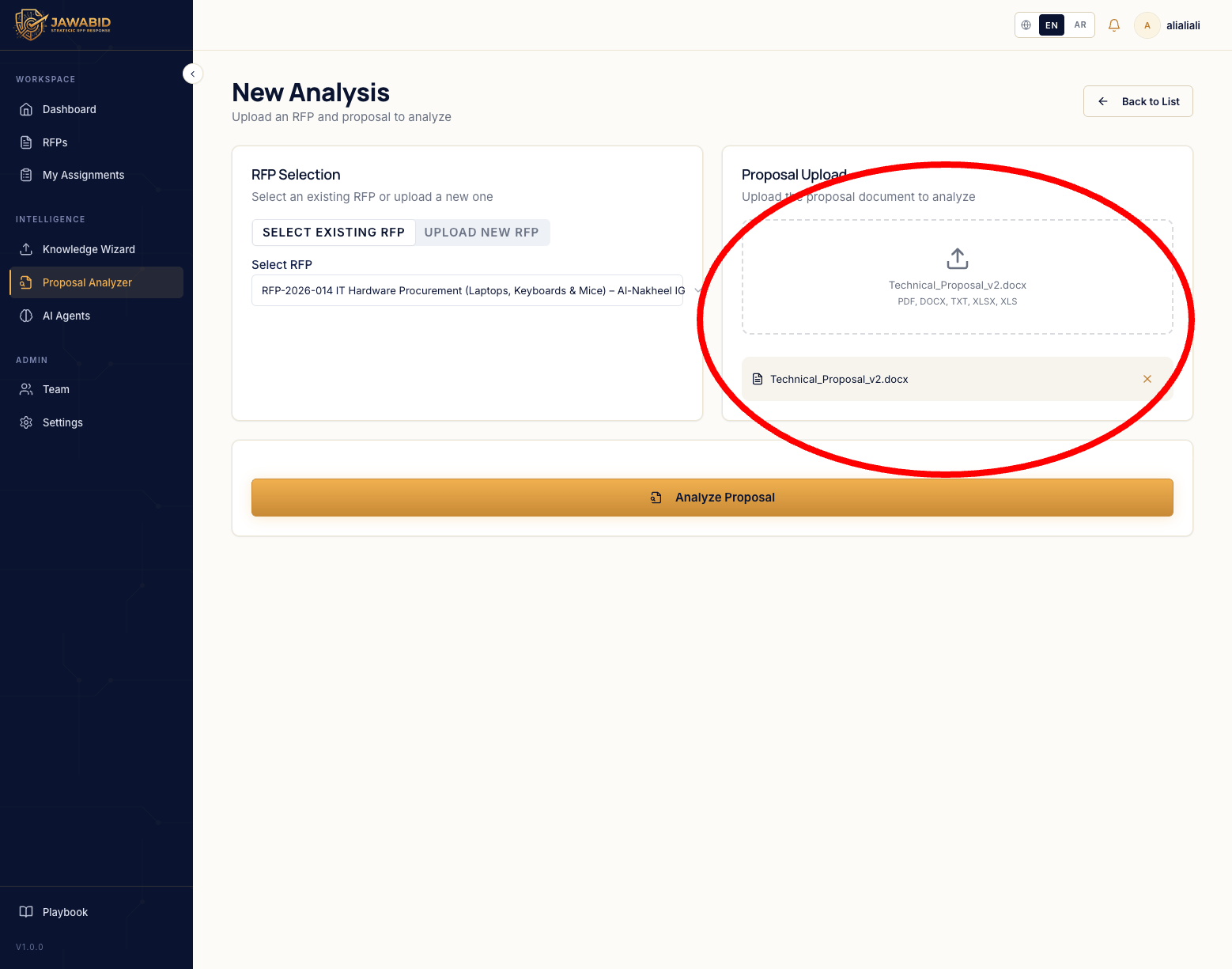
Issue: Proposal Upload should support multiple files Description On the New Analysis page, the Proposal Upload input currently appears to support only a single proposal file. This is limiting because proposals may be split into multiple documents, such as: * Technical Proposal * Financial Proposal * Commercial Proposal * Appendices or supporting documents The analyzer should allow uploading multiple proposal files and process them together as one proposal package. Page/Screen Proposal Analyzer → New Analysis Actual Result The user can upload only one proposal document at a time. Expected Result The upload input should support multi-file upload, so the user can select and upload more than one proposal document for the same analysis. Suggested Behavior Allow users to upload multiple files in the same upload area. After upload, each file should appear in the uploaded files list with its own remove/delete option. Acceptance Criteria * User can select multiple proposal files at once. * User can add more files after the first upload. * Uploaded files are displayed as a list. * Each file can be removed individually. * Clicking Analyze Proposal processes all uploaded proposal files together against the selected RFP. * Supported formats remain clear: PDF, DOCX, TXT, XLSX, XLS.
Screenshots & Video
Description
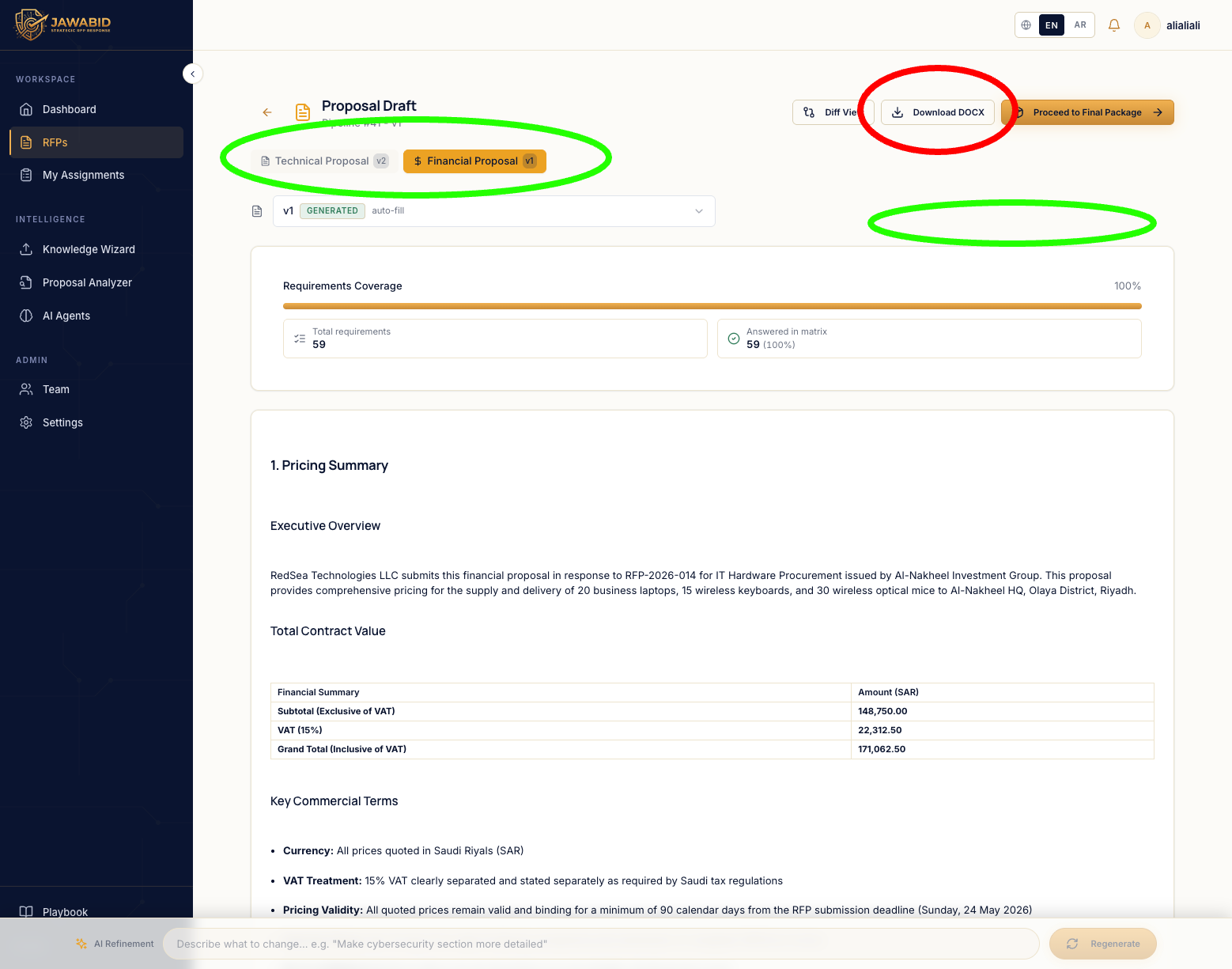
Issue: Download DOCX button placement is misleading in draft page Description On the Proposal Draft page, the current Download DOCX button is placed in the top-right action area, away from the document type/name tabs. This placement is confusing because the page has multiple document tabs, such as Technical Proposal and Financial Proposal. It is not immediately clear which document will be downloaded when clicking the button. Page/Screen Proposal Draft page Actual Result The Download DOCX button appears as a single global action in the top-right area. Because there are multiple document tabs, the user may not understand whether it downloads: * the currently selected document only * all documents * the technical proposal * the financial proposal Expected Result The download action should be visually connected to the document selection area, so the user clearly understands what will be downloaded. Suggested Improvements Option 1 — Move the button under/near the document tabs Place the Download DOCX button closer to the selected document type/name tabs, so it feels tied to the active document. Option 2 — Use a smart dropdown Replace the single button with a dropdown such as Download Documents, allowing the user to choose what to download: * Technical Proposal * Financial Proposal * Both documents Option 3 — Multi-select download Use a dropdown with checkboxes so the user can select one or more documents before downloading. Recommended Behavior
Screenshots & Video
Issue URL
https://test-rfp.siyadatech.studio/Description
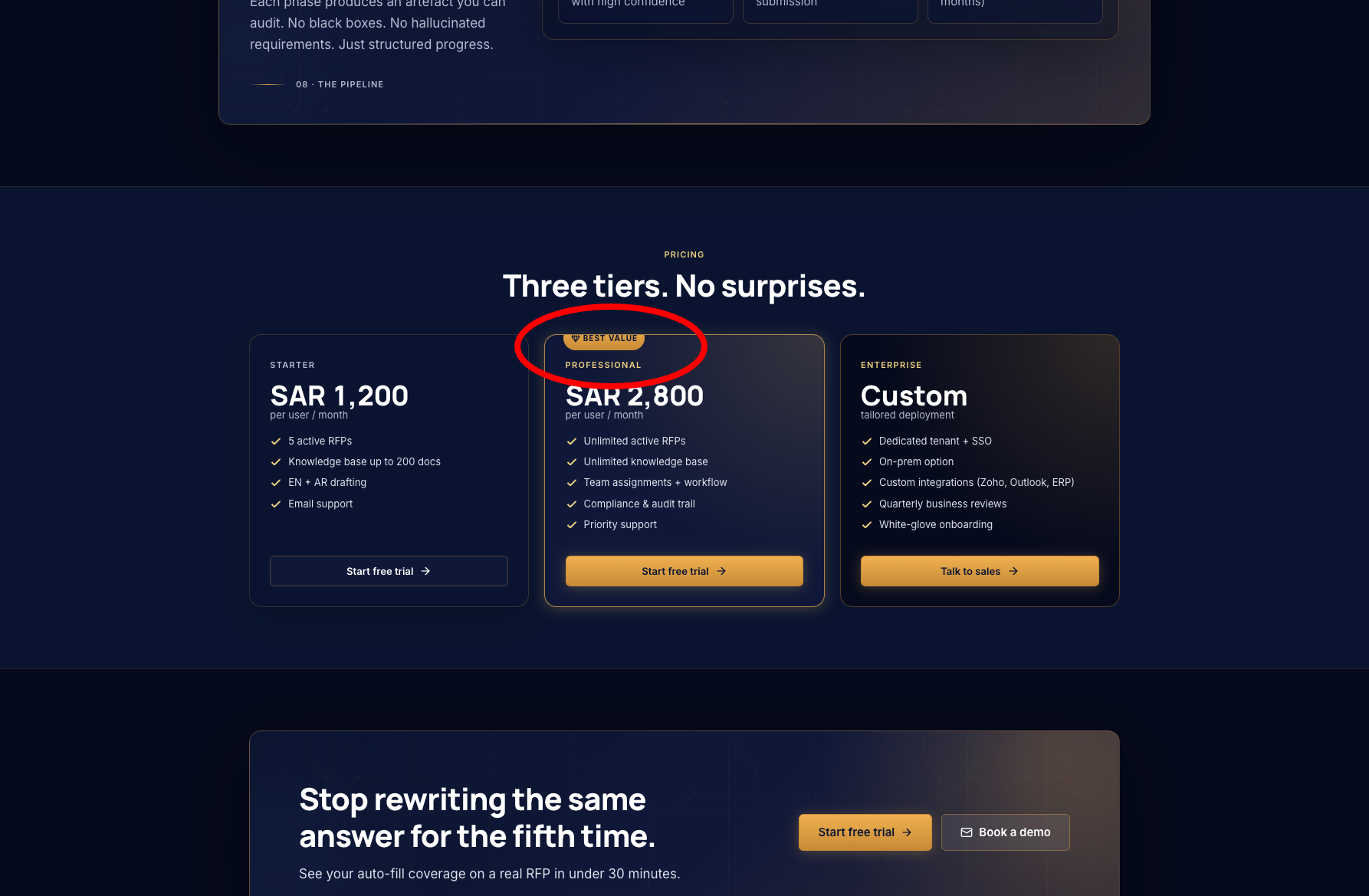
Description On the pricing section, the “Best Value” tag above the Professional plan is not fully visible. It looks like the tag is being clipped, most likely because of an overflow: hidden or incorrect positioning/z-index on the pricing card/container. Page/Section Pricing section — Professional plan card Actual Result The “Best Value” badge is cut off at the top and does not appear fully. Expected Result The “Best Value” badge should be fully visible above the Professional card without being clipped or overlapping incorrectly.
Screenshots & Video