Reports
Project: Lensi enhancement V1
Description
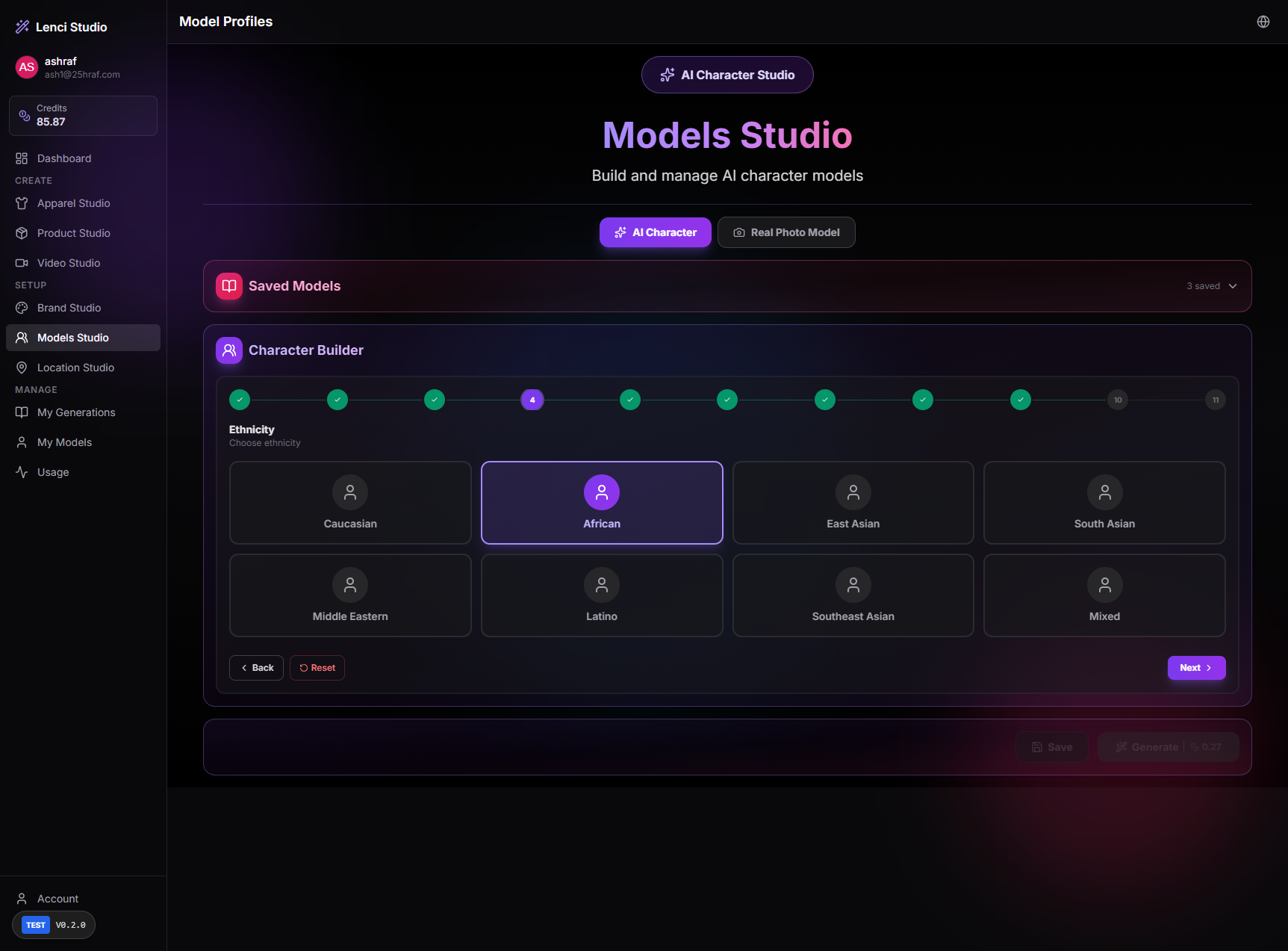
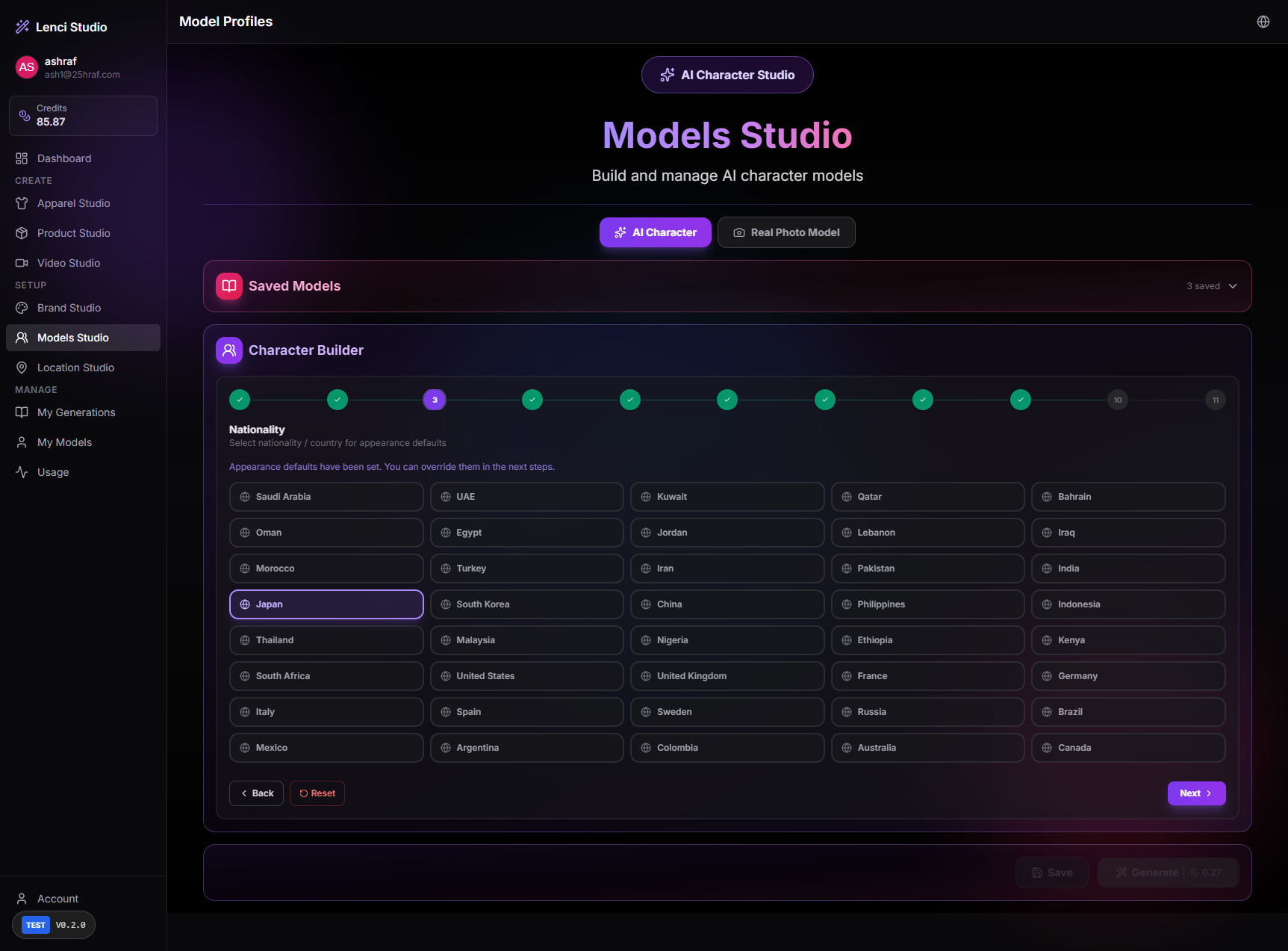
Issue description In Models Studio → Character Builder, there are logical conflicts between selections made in the Nationality step and the Ethnicity step. For example: The user can select Nationality: Japan, which implies East Asian appearance defaults. The user can also select Ethnicity: African, which contradicts the nationality-based appearance defaults. The interface even indicates that nationality sets appearance defaults, but the system does not enforce or reconcile conflicts between these attributes. This can lead to inconsistent character definitions and unpredictable generation results. Expected behavior Selections in Nationality and Ethnicity should remain logically consistent. When a nationality is selected: The system should either suggest compatible ethnicities or Limit available ethnicity options to those logically associated with that nationality. If the user changes nationality after selecting ethnicity, the system should validate the combination and resolve conflicts. Acceptance criteria Selecting a nationality sets appearance defaults that are consistent with typical ethnic groups for that region. Ethnicity options incompatible with the selected nationality are either: Disabled, or Flagged with a warning. If a user changes nationality after selecting ethnicity: The ethnicity selection is validated. Conflicting ethnicity selections are cleared or require user confirmation. The system prevents logically inconsistent combinations that could lead to unpredictable generation outputs. Character generation uses coherent appearance attributes derived from nationality and ethnicity selections.
Screenshots & Video
Description
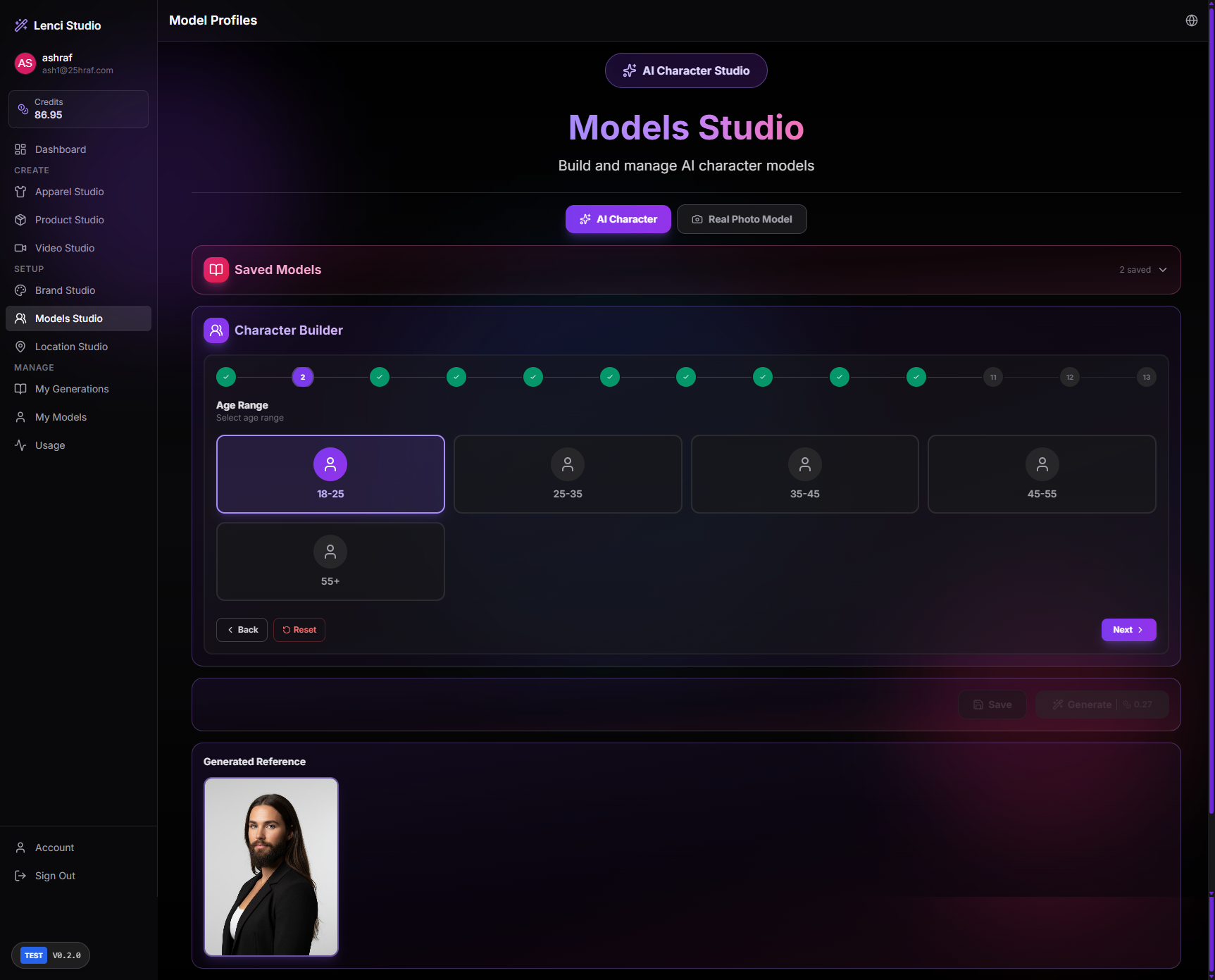
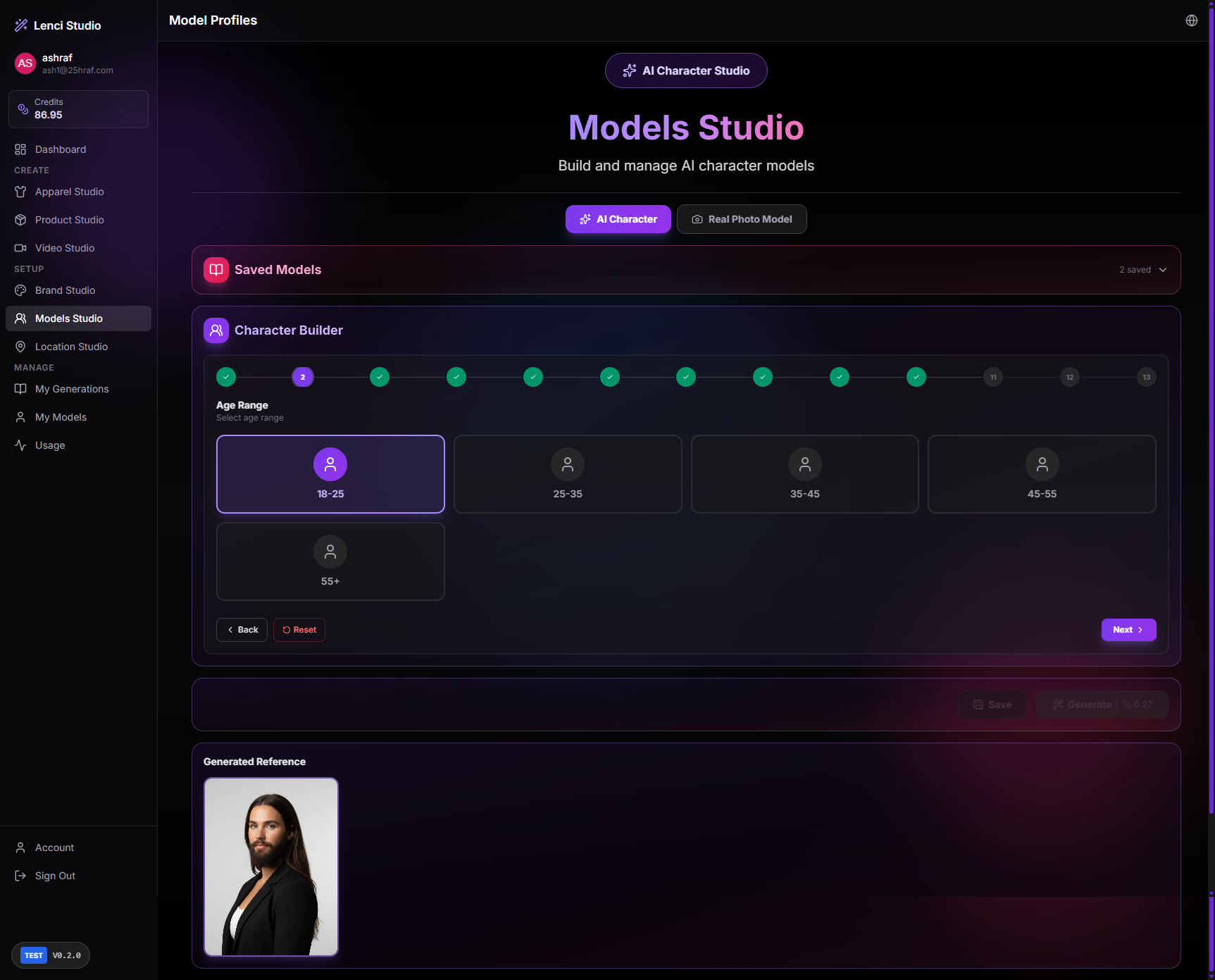
Issue description In Models Studio → AI Character → Character Builder, the generated reference image produces only an upper-body portrait, even though the expected output should be a full-body character image. In the shown example: The Character Builder steps are completed successfully. The system generates a reference image. However, the output is cropped to the upper body, instead of displaying the full body of the character. This results in an incomplete reference image that cannot be used properly in downstream workflows that require full-body models (e.g., fashion generation, apparel fitting, pose generation). Expected behavior The generated reference image from the Character Builder should produce a full-body character image, showing the subject from head to toe. The framing should be appropriate for use as a reference model across other studios (Apparel Studio, Scene Builder, etc.). Acceptance criteria The generated reference image shows the entire character body (head to feet). The character is not cropped at the chest, waist, or knees. The framing leaves enough space around the subject for reuse in other generation pipelines. The output remains consistent regardless of selected character attributes. The generated image is suitable for use as a full-body reference model in other studios.
Screenshots & Video
Description
Issue description In Character Builder, when a user edits a previously selected option in the configuration flow, the subsequent options remain unchanged. Because the options in the builder are sequential and dependent, modifying an earlier choice can invalidate the selections that follow. Currently, the system does not reset or clear those dependent selections, which may lead to inconsistent or logically incompatible configurations. Expected behavior When a user edits a previously selected option in the Character Builder, all options that come after the modified step should automatically reset. This ensures that the configuration flow remains logically consistent and that downstream selections reflect the updated context. Acceptance criteria If a user changes a selection in step N, all selections in steps N+1 and onward are cleared. Cleared steps return to their default unselected state. Any generated previews or derived outputs that depended on the previous selections are invalidated. The user must reselect options for the cleared steps before proceeding. The UI clearly reflects that the later steps have been reset. The behavior works consistently across all steps in the Character Builder configuration flow.
Screenshots & Video
Description
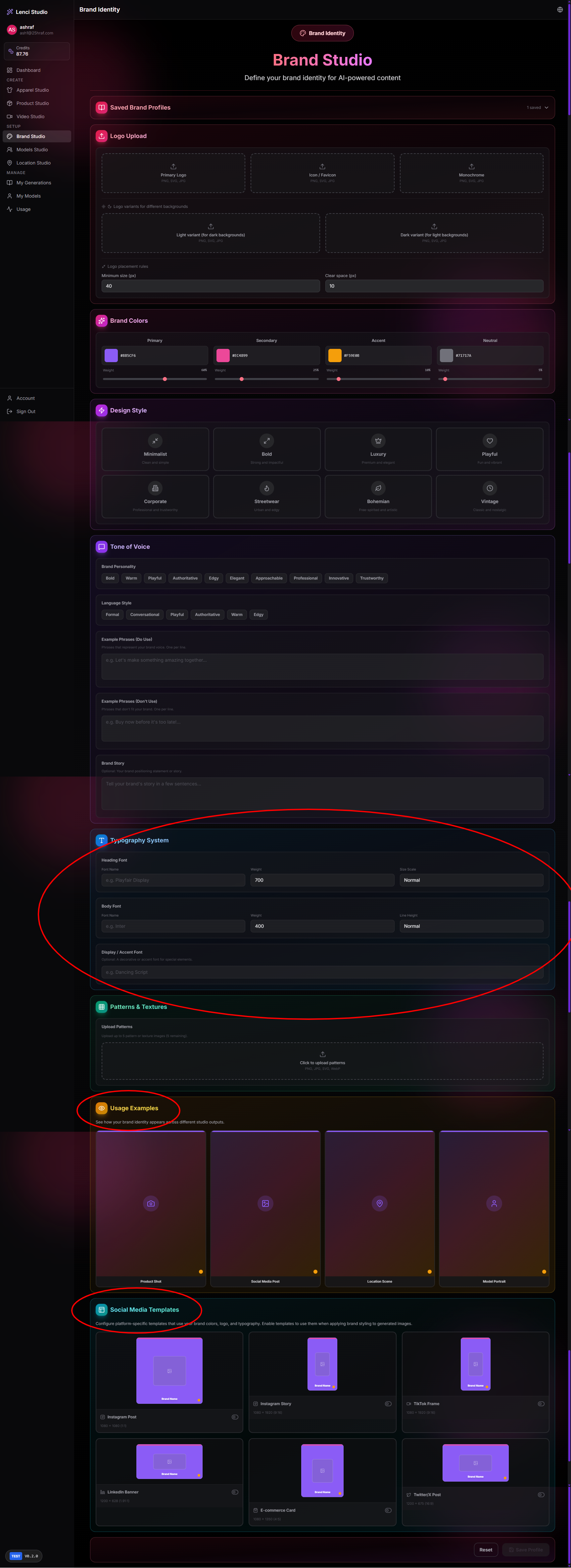
Issue description In Brand Studio, several sections are implemented as configuration inputs, but they should instead function as brand asset repositories that accept uploaded files and visual references. Currently: Typography System uses manual text fields for font name, weight, and line height. Usage Examples appears to expect generated outputs rather than real brand usage references. Social Media Templates appears structured like preset templates rather than brand-uploaded template assets. This structure does not align with how real brand identity systems are managed. Brand teams typically store actual assets and references (fonts, examples, templates), not only descriptive metadata. As a result: Brand guidelines cannot be represented accurately. The system lacks the real visual assets needed to guide AI generation consistently. Expected behavior Typography System This section should allow users to upload or link to actual brand fonts. Supported inputs should include: Upload font files (e.g., .ttf, .otf, .woff, .woff2). Provide Google Fonts URL. Provide Adobe Fonts link. The system should then store these fonts as part of the brand identity. Usage Examples This section should allow users to upload real brand content examples that demonstrate how the brand is used in practice. Examples may include: Previous product photos Marketing visuals Social media posts Campaign imagery Each uploaded example should optionally include: A short description explaining the usage context. Social Media Templates This section should allow users to upload actual template designs used by the brand, rather than relying only on system-generated presets. Users should be able to upload: Instagram post templates Story templates LinkedIn post layouts Banner formats TikTok frame layouts Each template should include: Platform type Dimensions Optional description of how it should be used. Acceptance criteria Typography System Users can upload font files (.ttf, .otf, .woff, .woff2). Users can add external font links (Google Fonts or Adobe Fonts). Uploaded fonts are stored and associated with the brand profile. The AI system can reference these fonts when generating brand-aligned content. Usage Examples Users can upload multiple image examples. Each example supports an optional description field. Uploaded examples are displayed in a gallery. These examples are stored as reference assets for the brand identity. Social Media Templates Users can upload template images or design files. Each template supports: Platform selection Dimensions Description Uploaded templates appear in a structured template library. AI content generation can reference these templates when producing social media outputs. General behavior Uploaded assets persist within the Saved Brand Profile. All sections support multiple uploads. The UI clearly differentiates between reference assets and AI-generated outputs.
Screenshots & Video